


This guide will describe the steps you can take to create a course that is both engaging and adheres to the Blackboard Universal Standards (BUS). If you are not sure what the BUS is or what it means for your Ultra course, please visit the BUS SharePoint site (accessible to UoS staff) before going through this content.
Before you start
Roll over your previous year’s Ultra course or, if this is a new course, check the guidance to see how to set this up.
You are now ready to start populating/enhancing your course (depending on whether this is a new or rollover course).
Ingredients
- Lots of copyright-free images related to your course (image you’ve taken, Unsplash, Pixabay, Pexels)
- Prepared online reading list
- Assessment task(s) detail
- Structured breakdown of course content (ordered chronologically, or by topic, or by activity)
- Contact details of lead instructor(s)/academic(s)
- Learning modules, documents, LTI tools* from the Ultra ‘+’ menu
- A mix of activities and media such as video, interactive video, Teams tasks, and interactive quizzes
*LTI (Learning Tools Interoperability) tools are a standard way for external learning applications (“apps”) to connect and work inside Blackboard.
Method
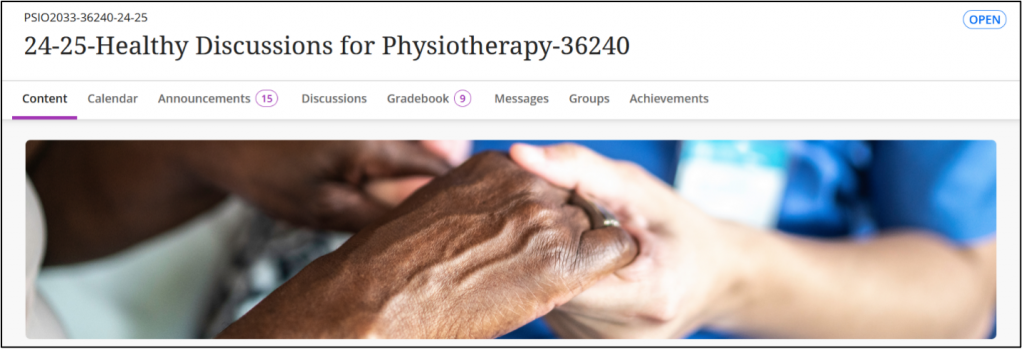
- Start with a suitable banner image (not to be confused with Banner – the student records system) image. Remember to add ALT text.
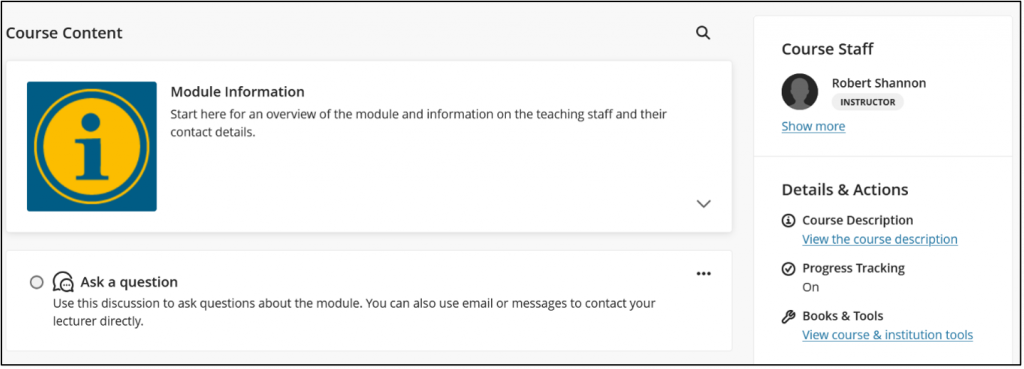
2. Set up the usual module information and instructor information, as per the BUS. Further guidance on this topic can be found in the eLearn Guides.
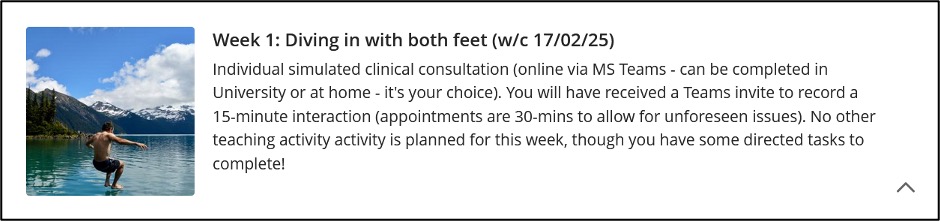
3. Add a ‘learning module’ from the + icon menu in Ultra. Then add an image for each week (or topic, if you have decided to group your course according to subject categories). Include a short description of what will be covered. This helps students to look up material based on its content, rather than trying to remember what week or session number they were in.
Ultra elements, engaging activities and supporting materials
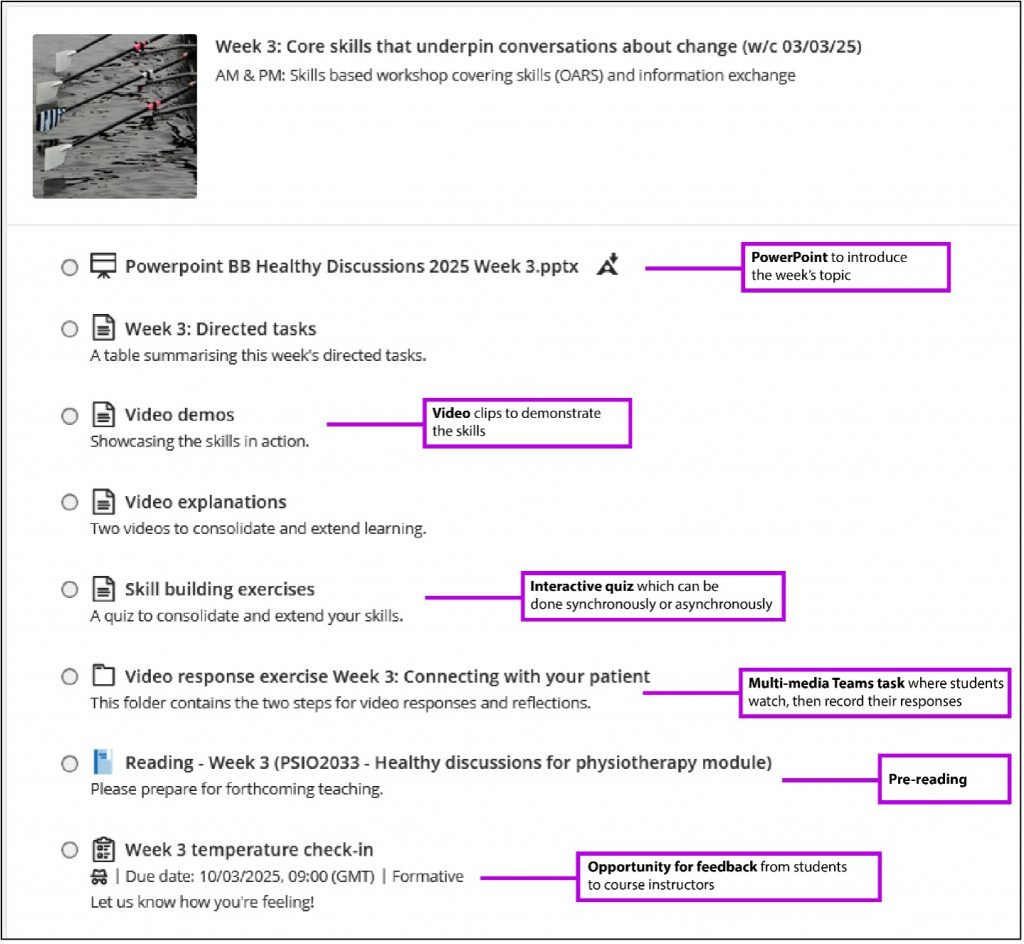
Now to populate your course with activities and supporting materials. In PSIO2033 Healthy Discussions for Physiotherapy, a combination of activities is included each week:
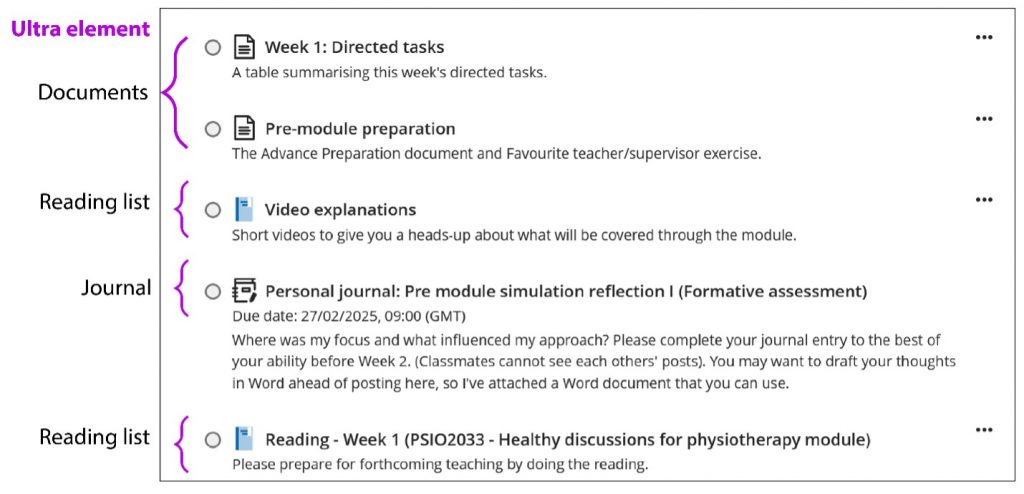
What adds engagement here is the combination of activities. Let’s look at this again from an engagement point of view:
Multimedia Teams task
Students watch a video of a patient (played by an actor) giving a reason why they do not want to take advice. Students then use Microsoft Teams to record a video response back to the ‘patient’. The aim for this task was to demonstrate they knew how to use the reflective listening techniques.
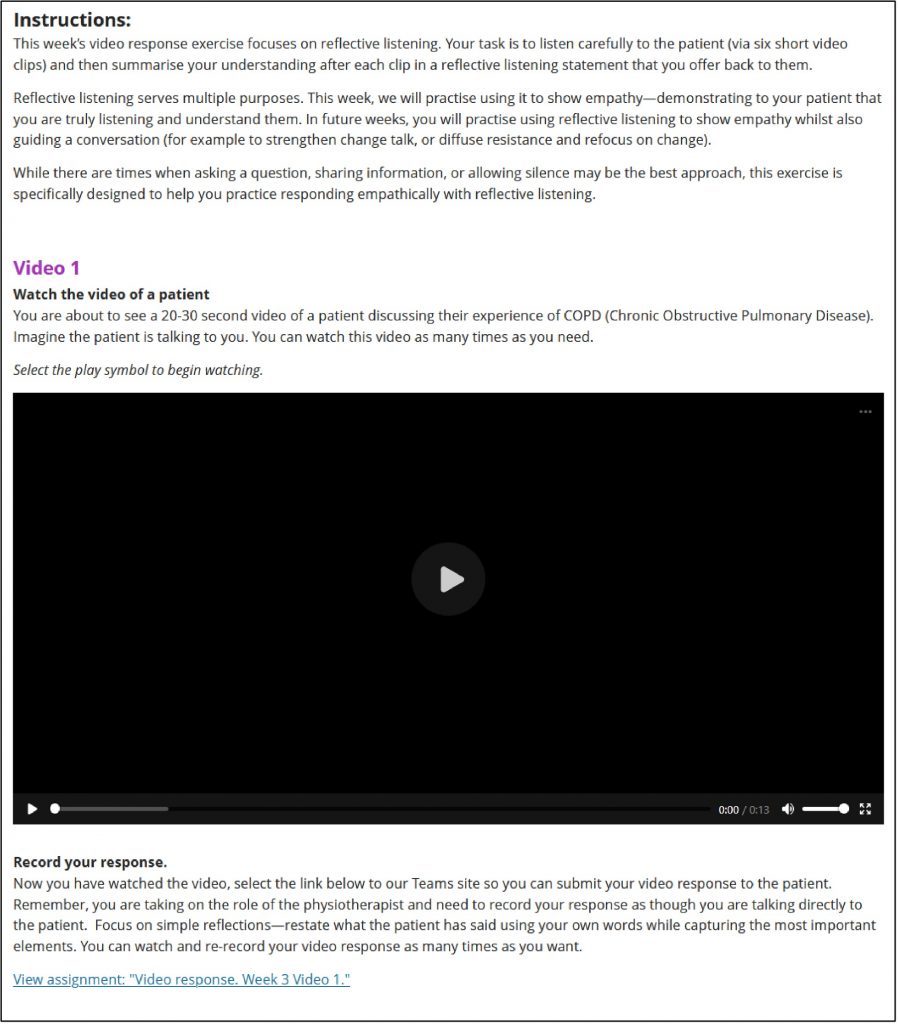
The beauty of using MS Teams to record the task was that students can make use of the AI features that analyse their pitch, tone, speed, and clarity of their voice. It also gave them unlimited attempts to record the response before submitting to the course instructor for analysis. The other great advantage is that MS Teams is fully compatible with Blackboard Ultra. For a step-by-step guide on how to set up your own Teams-integrated task, we have created a guide you can follow.
PowerPoint files
There are many theories as to how effective PowerPoints can be when used as a teaching tool. However, it is a standard educational device that can be used to great educational effect. Kumar (as cited in Inoue-Smith, Y. (2016) noted, “Contemporary college students are interested in learning through live demonstrations and active interactions rather than simple lectures; therefore, instructional technologies confer an advantage when used properly” (p. 3). So let us look at some techniques at how to bring PowerPoint files to life.
Layout:
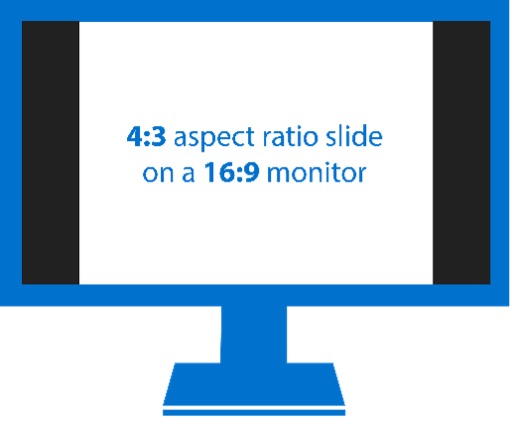
Most modern laptops, monitors and display screens are set to 16X9 aspect ratios (there are exceptions). Before the late 2000s, screens and therefore PowerPoint slides were set to 4×3 aspect ratio. Ensure when designing your slides that you have your ratios set to 16×9 to avoid black bars down either side (and it looks out of date).

Branding/ Use of colour
Choose your colours according to what your presentation is conveying. The University has its own brand colours and Accessibility Matrix for University of Southampton Brand Colour Palette: https://matthewdeeprose.github.io/matrix/matrix.html. For the PSIO2033 Healthy Discussions for Physiotherapy, the decision was made to follow NHS blue. A simple Google search revealed many HEX codes for NHS blues:

Note: CMYK colours are generally used for printing. For digital work (i.e., PowerPoint slides), use HEX codes (shown above).
By establishing what your primary HEX code/s will be, you are ensuring consistency within your presentation.
In terms of your branding, you could choose to have the University of Southampton logo on each slide, adding brand identity and professionalism. To ensure consistency throughout your presentation (e.g., use of the same size and location on each slide), follow these instructions:
- Open Slide Master View
- Open your PowerPoint presentation.
- Go to the View tab on the ribbon.
- Select Slide Master. This opens the master slide view, showing the master slide and all associated layouts.
- Select the Master Slide
- In the left-hand pane, select the top-most slide (this is the master slide).
- Changes made here will apply to all slide layouts beneath it.
- Insert the Logo
- Go to the Insert tab.
- Select Pictures > choose This Device (or another source).
- Select your logo image file and click Insert.
- Position and Resize the Logo
- Drag the logo to your desired location (e.g., bottom-right corner).
- Resize it by dragging the corners while holding Shift to maintain proportions.
- Ensure Consistency
- Double-check the logo’s position and size.
- You can use guides (View > Guides) to align it precisely.
- Close Master View
- Once you’re happy with the placement, go to the Slide Master tab.
- Select Close Master View.
You can also use Slide Master to set which font, size and other brand identities you wish to use. This ensures consistency and accuracy on each slide.
Graphics
Although not always necessary, adding graphics (whether they be a labelled diagram or meme) adds interest. It is a great way to break up text and convey information in a different way. Compare the following:
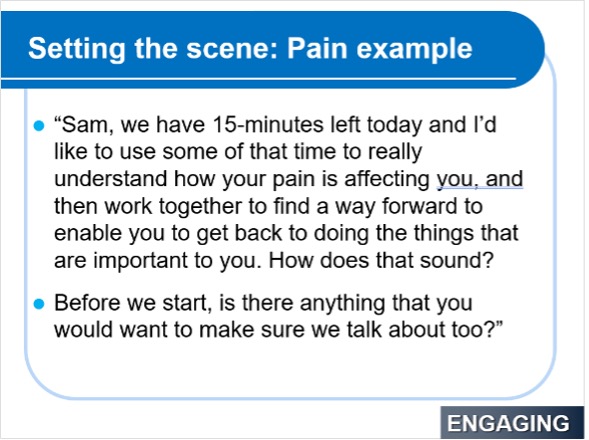
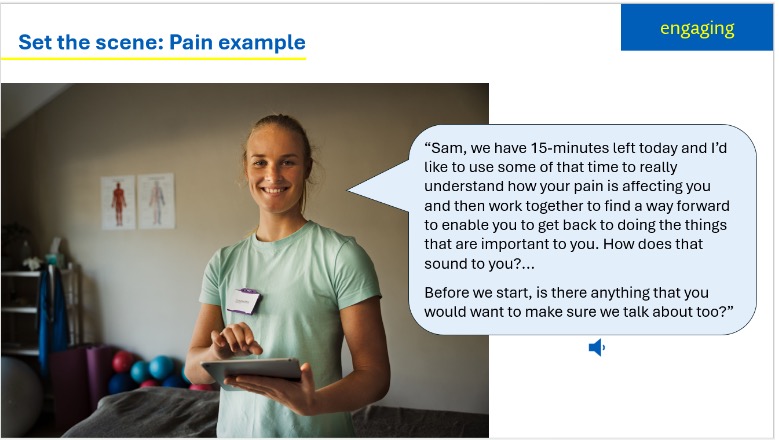
In the above examples, Figure 5 has been further enhanced with the option to select the audio button and listen to the text being read by the person in the image.
Next, we take what was a question followed by three bullet point answers and change it to a graphics-based response (graphics – with ALT text and text):
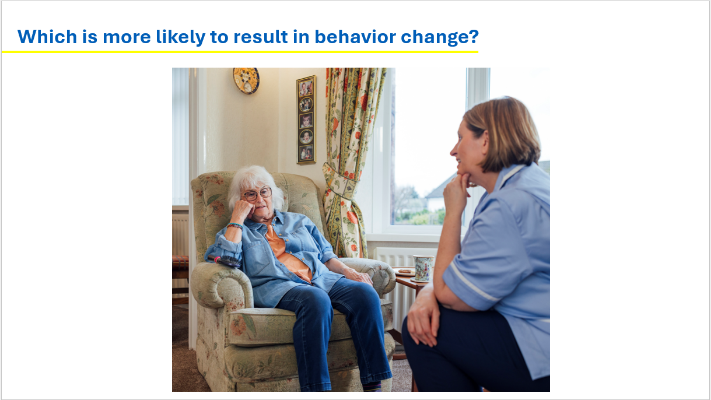
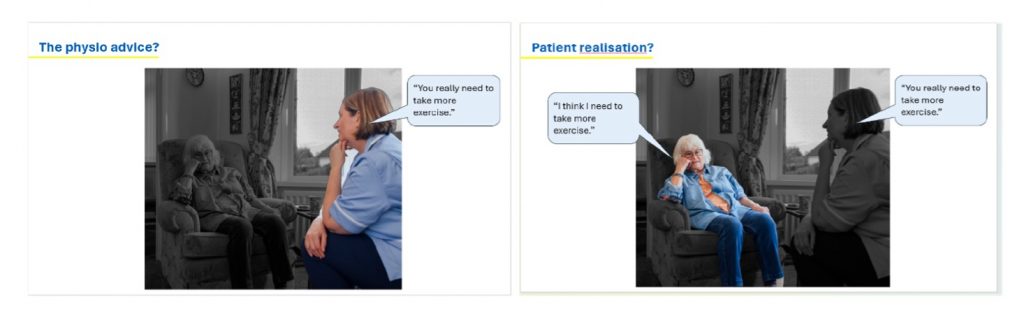
By focusing on different parts of the image, you are helping to bring to life the information in the text.
NOTE: The ultimate responsibility of copyright is on the course author; some of the free image sites or other sources might not take any responsibility. Therefore, it is up to you to ensure you are complying with copyright conditions.
Animate
Let us not confuse the term ‘PowerPoint animations’ with the spinning text and bouncing images that were popular in the early 2000s! For this project, we are referring to the morph transition tool and how it can be used to replace a bullet point list. For example:

Using the morph transition tool:

We can give the appearance of each coloured bar sliding across the screen, along with its corresponding graphic and text. By adding moving images, we are appealing to the part of the brain where visual information is processed. Microsoft has a step-by-step guide on how to use the morph transition tool but a simple Google search will give you several guides as to how to use it more creatively.
Interactions
If we use Edgar Dale’s Cone of Experience 1969, we can see that interaction has a higher knowledge retention rate than reading alone. Therefore, it is important that as educators we insist on interactive learning over passive learning. We have a number of supported tools within the University that you can use to encourage interaction. Here are just a few of them:
- Vevox: This digital tool enables us to create polls, quizzes, word clouds and to gauge understanding within a synchronous session. Results can be shared and analysed afterwards.
- Thinglink: This tool can be used either synchronously or asynchronously to create 360° tours, branched scenarios, quizzes, 3D models, floorplans, images/videos, infographics, tutorials, maps / aerial views, presentations, product demos, showroom/gallery, timelines and VR experiences. The software is compatible with Blackboard Ultra.
Presenter mode
When delivering content online, it is both more accessible and easier for you, the presenter, to present PowerPoint within Teams. This enables you to see both your notes and audience comments and reactions. It can also auto-generate closed captions which helps meet WCAG 2.2 requirements.
Accessibility
Accessibility should underpin everything we create, whether that be in Blackboard Ultra, PowerPoint or any of the other supported tools. At the University, we always aim for WCAG 2.2 levels of accessibility. That could include:
- Always having closed captions (CC hereafter) on video clips (even if the video has no spoken word, add this in the closed caption so that a hearing-impaired learner is not trying to figure out why the CCs are not working!).
- Ensuring images (whether photos, graphics or infographics) have alternative text (referred to as ALT text hereafter), which outline what information the image is trying to convey.
- Choose colour combinations carefully to ensure colour contrast is sufficient that people can read what is written (WCAG recommend a colour ratio of 4.5:1 when using standard text).
We have produced a huge amount of support pages for you to use when creating your engaging resources, each of which will guide you through how to utilise accessibility checking features in our University tools, as well as how to create accessible designs in the first place.
If you have any questions about what has been covered in this article or you have an idea but are not sure how to go about executing it, please raise a ticket via Service Line for the attention of the Digital Learning Team and we will endeavour to work with you to empower you to be able to create your own engaging piece of learning.