

What is Blackboard AI Design Assistant?
Blackboard have partnered with Microsoft to provide a suite of AI tools to support course content creation, knowledge checks, instructor efficiency and student engagement. These tools are collectively known as the Blackboard AI Design Assistant.
The integrated Blackboard AI Design Assistant aids teaching staff in the creation of course content and student engagement. It puts the human in control by allowing you to adjust the complexity of content and customise everything that the AI Design Assistant generates. The tools can be identified by the two stars icon.
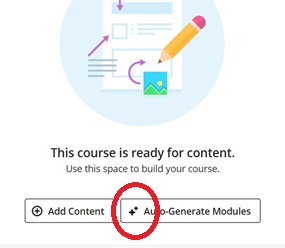
You can use your Blackboard Sandbox to practice with these tools. If you would like a demo or want to learn more please raise a ticket with the Digital Learning team.
The AI Design Assistant includes:
- Course structure suggestions
- AI conversations
- Discussion, journal and rubric generation
- Assignment prompt and test question generation
- Insert or generate images
Responsible AI in Blackboard
As a University-supported tool, Blackboard has institutional safeguards in place to make sure your educational content is protected, this includes the use of the AI Design Assistant. Content created with AI in Blackboard is not shared outside the University. As the subject matter expert, you have complete control over the AI Design Assistant and its outputs, and you should always check for accuracy and misinformation. Blackboard will remind you of this by including the following banner stating ‘This is auto-generated content and needs to be checked for accuracy and bias’

As with any AI tool make sure to follow the guidance on AI from the Generative AI working group.
Bite-sized task
Step 1 – learn
In this task, you will use the Blackboard AI Design Assistant to generate a formative quiz. This task should take about 10 minutes.
Step 2 – do
1. Open a Blackboard Ultra course that you are an instructor on and within course content select the plus (+) icon. From the drop-down menu select ‘create’ and then select ‘test’.
2. Select the plus (+) icon and from the question types select ‘Auto-generate question’.
The description box is where you write your prompt (instructions). As we are generating a formative quiz, you should describe the topic, this could include learning objectives and other relevant information.
3. Choose the question type you want or select ‘inspire me!’ for a mix.
4. Indicate the level of the course using the complexity slider. The complexity slider ranges from low (primary school) to high (PhD).
5. Indicate the number of questions you would like to generate.
When you are happy with the settings select generate. Try different settings and descriptions to see how it affects the output.
6. Select a course item
Blackboard also gives you the option to use content items from your course as a prompt, alongside, or instead of, the description. To do this, use select course items and then find the item you wish to use as a prompt. This could be a course handbook, a module profile or even lecture slides, which the AI will then use to produce relevant outputs.
7. Evaluate the output
As with any AI outputs you should check for accuracy, augmentation and bias. Blackboard will remind you to do this. From the auto generate page you can choose to re-generate the images or generate everything again. To edit the content yourself you first need to add it to your course. Select the check box by the content you wish to use and select ‘add to course’. Now as a course item you can edit it like any other course item.
Step 3 – reflect
Things to consider
- Ask the Digital Learning Team for a demonstration of the other Blackboard AI Design Assistant tools.
- What happens when you use different course items? Or multiple course items?
- What is the smallest prompt you can use and still generate useful questions?
- How much difference does the complexity slider make?
- Would you use any of the generated learning modules on your course?
- How does this process fit into your usual module development or creation process?
Join the conversation
Post your thoughts on the weekly Teams post to join the conversation.
Further links
Read our eLearn guide to find out more about the Blackboard AI Design Assistant.
Read the Blackboard guide to the AI Design Assistant (External)
Academic Responsibility and Conduct tool kit for Acknowledging the use of GenerativeAI.
As part of the Ultra Staff Development Programme there is a session on the auto-generating modules.
Contributor biography
Peter Boorman is a Learning Designer within the Digital Learning Team. He works on the Ultra project providing support for academic staff and plays an essential role in testing the Blackboard AI design assistant. He is also a member of the GenAI working group and is developing and delivering a GenAI training and learning event called Prompt-a-thon.
© 2025. This work is openly licensed via CC BY-NC-SA